Before you begin
Make sure you have:
- The AndLink app installed on an Android phone (Android 8.0 or later) — the phone acts as the server
- A desktop client (macOS 12+, Windows 8+, Linux) or any modern browser
- Phone and computer on the same local network
Three steps to connect
- Start the service — Open the AndLink app, turn on the AndLink service switch on the home screen and note the access address (e.g.
http://10.191.40.54:8822) and the connect code. - Connect — In the desktop client open Device management (the ”+” button), pick your phone from the LAN device list and enter the connect code. In a browser, simply open the access address and enter the same code.
- Share — Browse and download files from the phone, chat and exchange media, mirror the screen and run quick actions. Everything stays inside your local network.
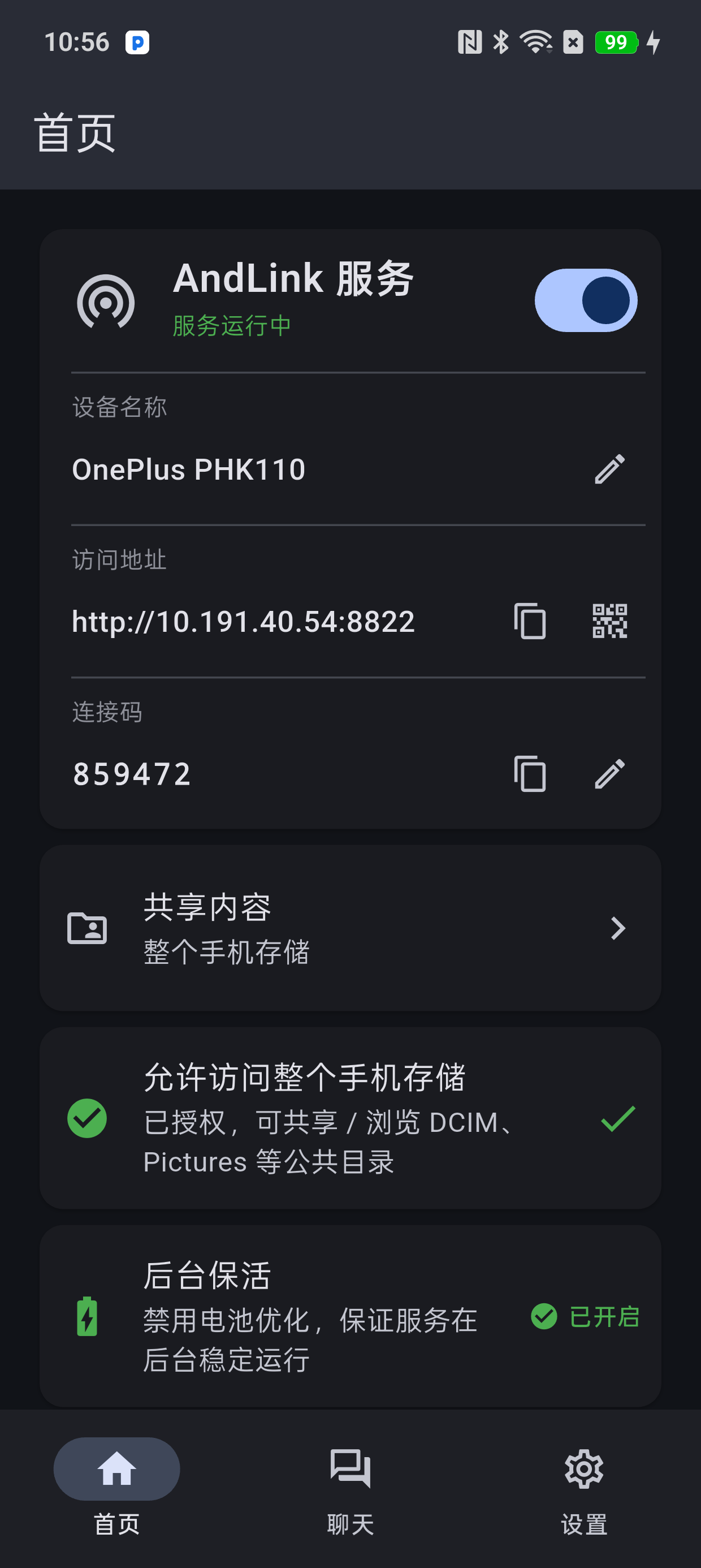
Phone: service switch, access address and connect code
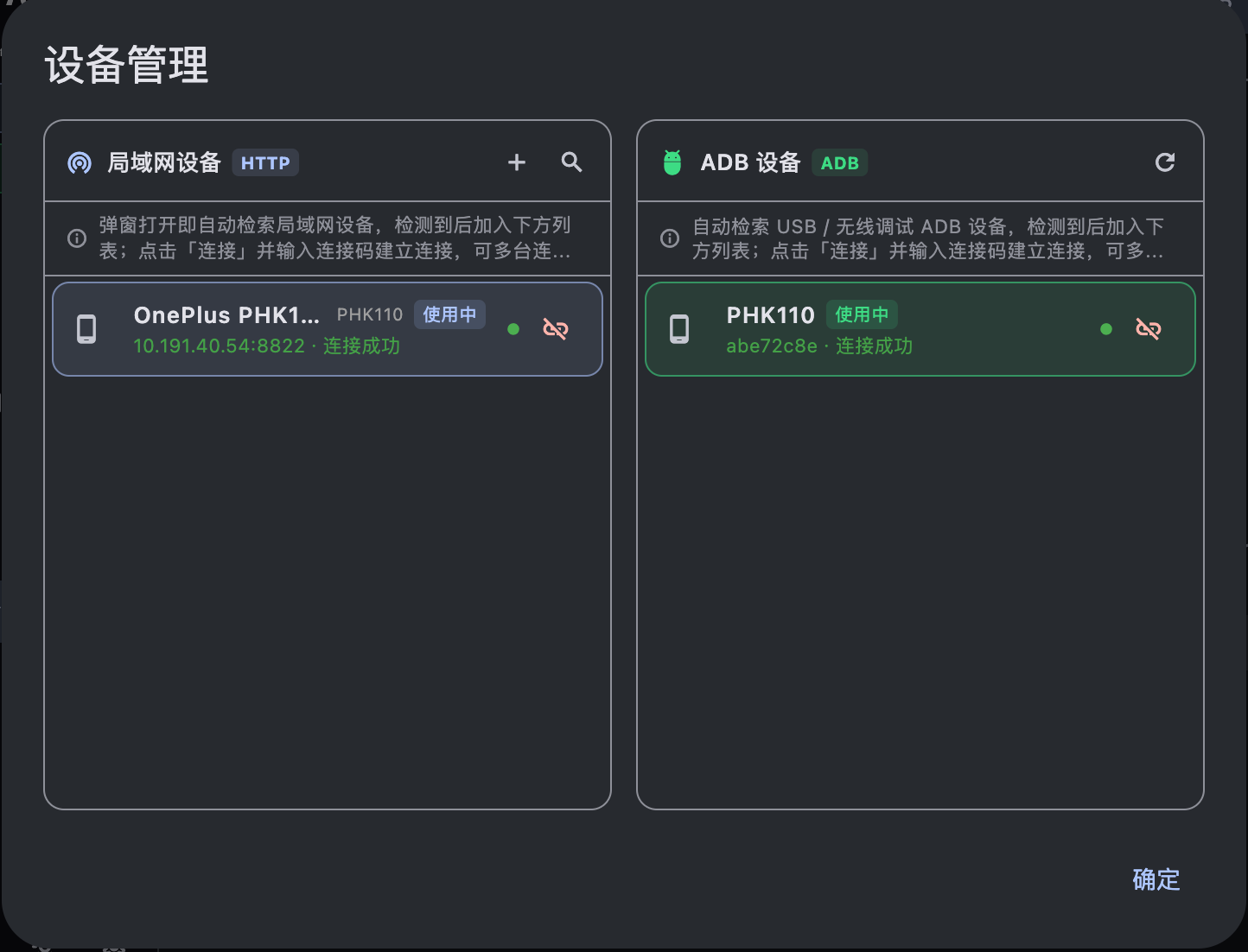
Desktop client: device management
What you can do next
- File sharing — browse the phone storage by folder, or scan photos, videos and audio into thumbnail grids, then download what you need.
- Chat sharing — exchange text, images and files with your phone; sent items show as delivered, received ones as saved.
- Screen mirroring — mirror the phone screen to your computer, with screenshots and screen recording.
- Web console — the phone also serves a built-in web page, so any browser can use file sharing and chat after verifying the connect code.
Connection requirements
| Phone | Computer / browser | |
|---|---|---|
| System | Android 8.0+ | macOS 12+ / Windows 8+ / Linux, or any modern browser |
| Network | Same local network as the computer | Same local network as the phone |
| Account | Not required | Not required |
| Data usage | None — traffic stays on the LAN | None — traffic stays on the LAN |